This tutorial shows you how to set up Windows Mail to work with your e-mail account. For tutorials on setting up your Email in Microsoft Outlook 2007 or Microsoft Outlook Express®, please see our other Knowledgebase Email Help Guides.
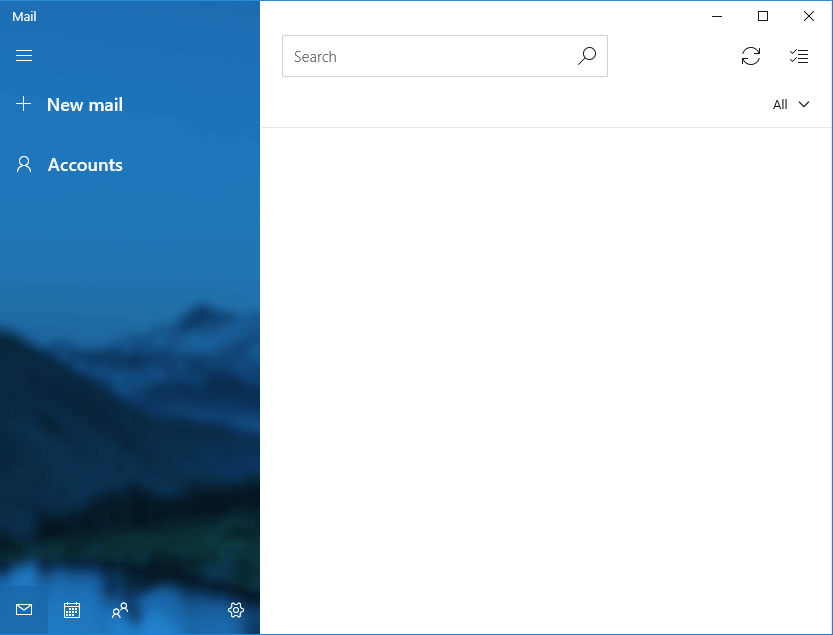
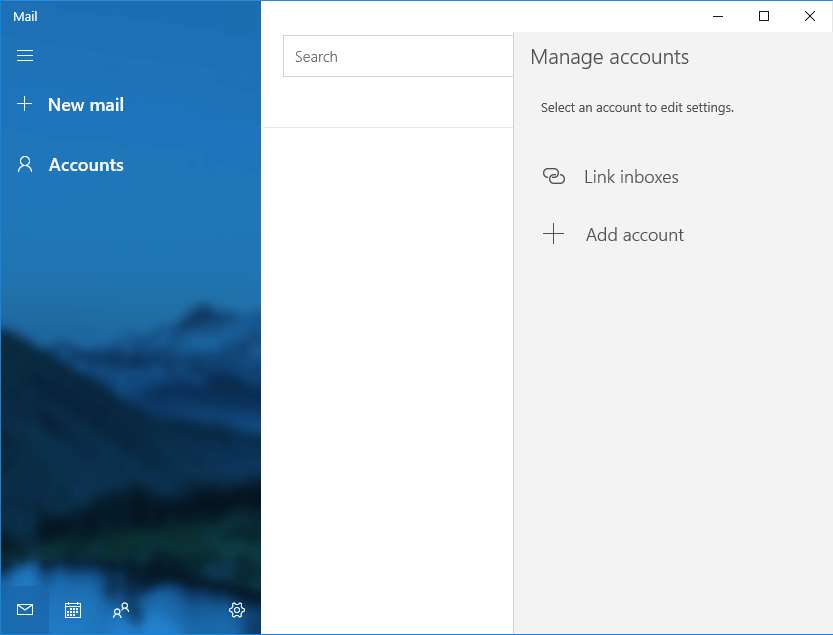
Step 1: In Windows Mail click Accounts.
Step 2: Click “Add account”.
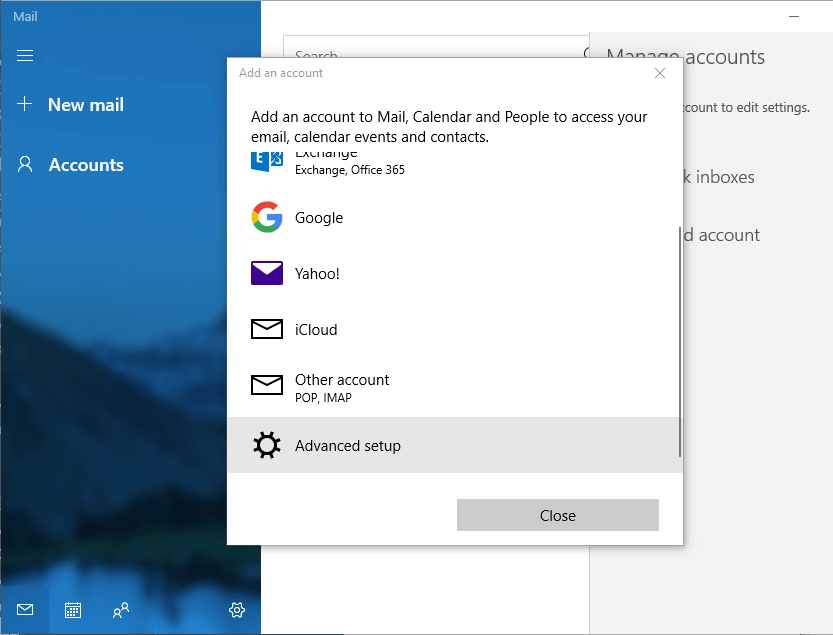
Step 3: Click “Advanced setup”.
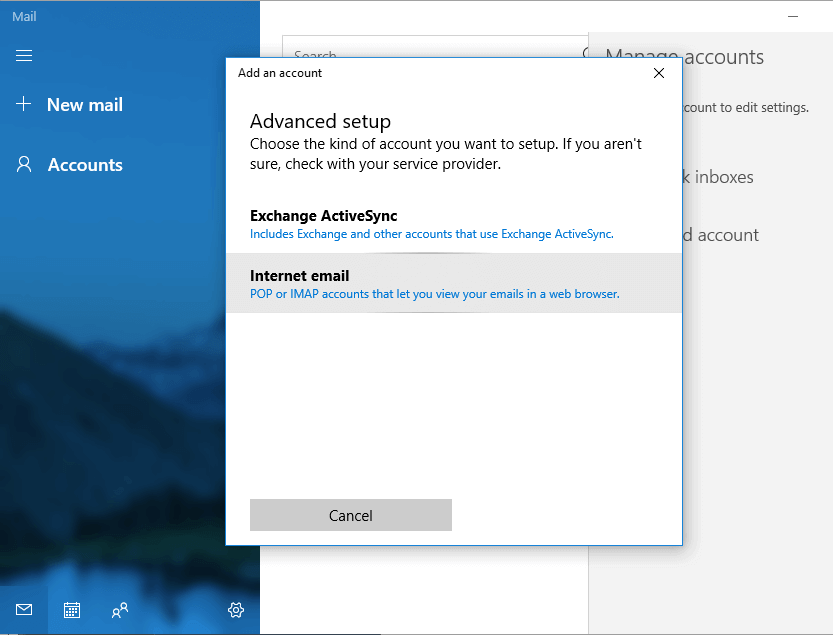
Step 4: Click Internet email.
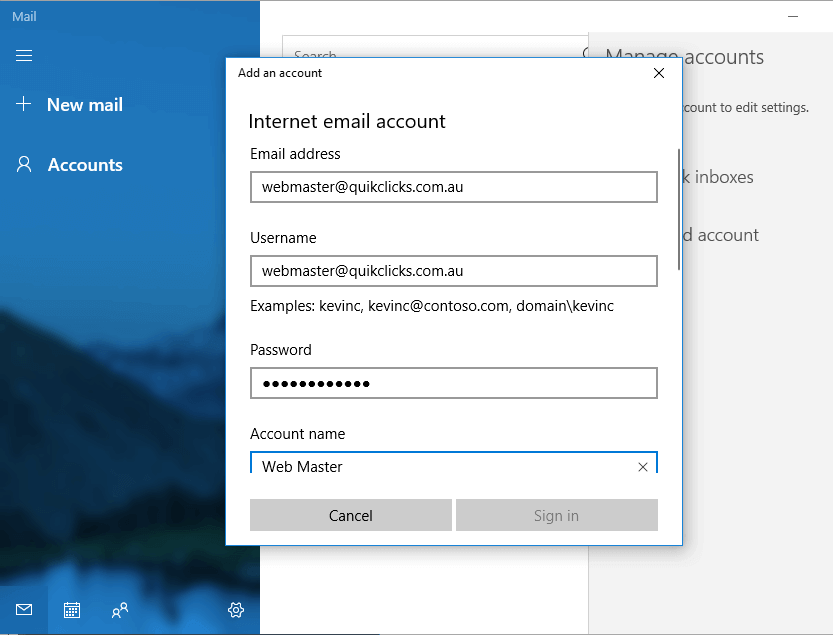
Step 5: On the Internet email account window, enter your information as follows:
E-mail Address
Your full Email address.
User Name
Your full Email address, again.
Password
Your Email account password supplied to you by Quikclicks.
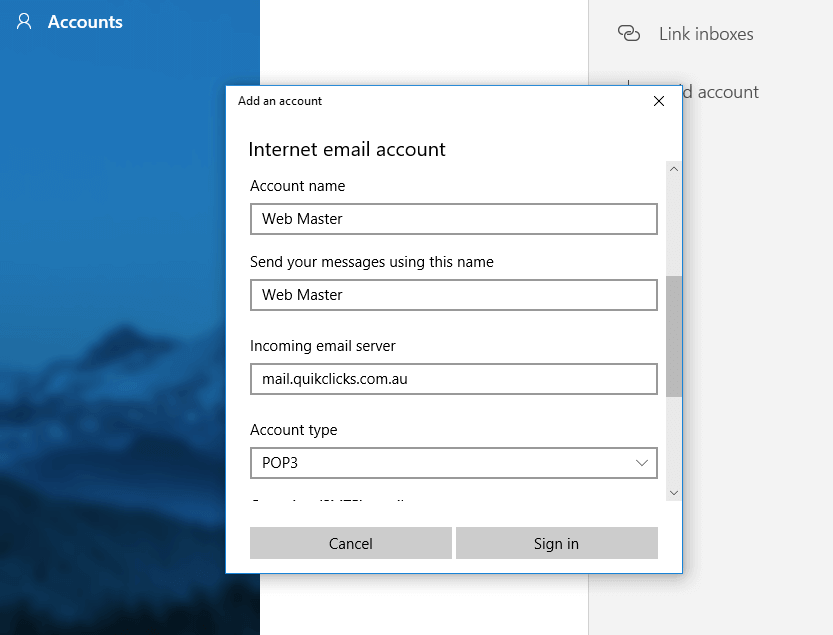
Account name
Send your messages using this name
Incoming email server
“mail.your-domain.com.au” (where ‘your-domain.com.au is replaced with your actual Domain Name.
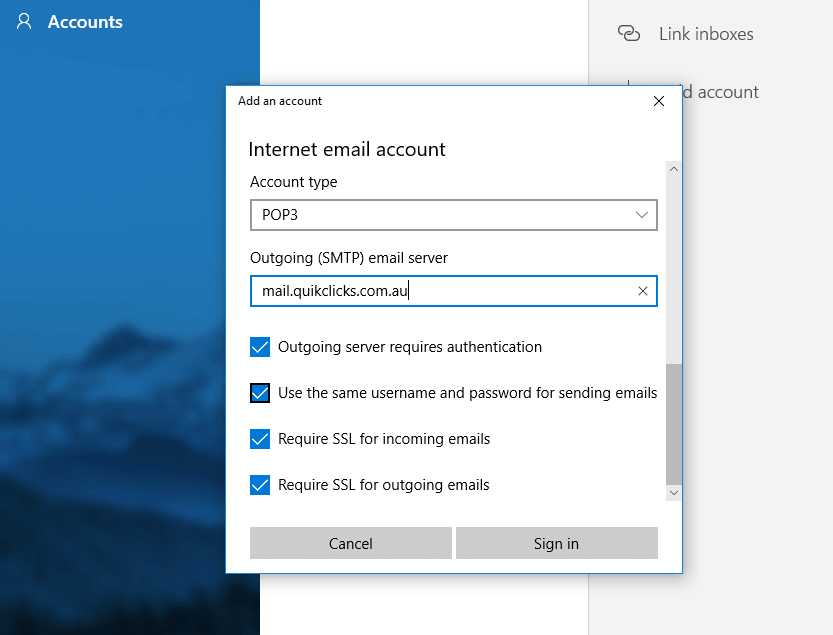
Account type
Select POP3
Outgoing (SMTP) email server
“mail.your-domain.com.au” (where ‘your-domain.com.au is replaced with your actual Domain Name.