
If your web designer, marketing agency or a member of your team needs to see your website data, you can give them their own access to Google Analytics 4 (GA4). There’s no need to share your password. Each person signs in with their own Google account, you choose what they can see and do, and you can change or remove their access at any time.
Before you start
- You need the Administrator role on the Google Analytics account or property to add users.
- Sign in with the Google account that manages your Analytics. If you can’t see your website’s property, you’re probably signed in with the wrong Google account.
- The person you’re inviting needs a Google account, such as a Gmail address or a Google Workspace email address.
How to add a user to Google Analytics
To invite someone to your Google Analytics account, follow these steps:
- Sign in to your Google Analytics account.
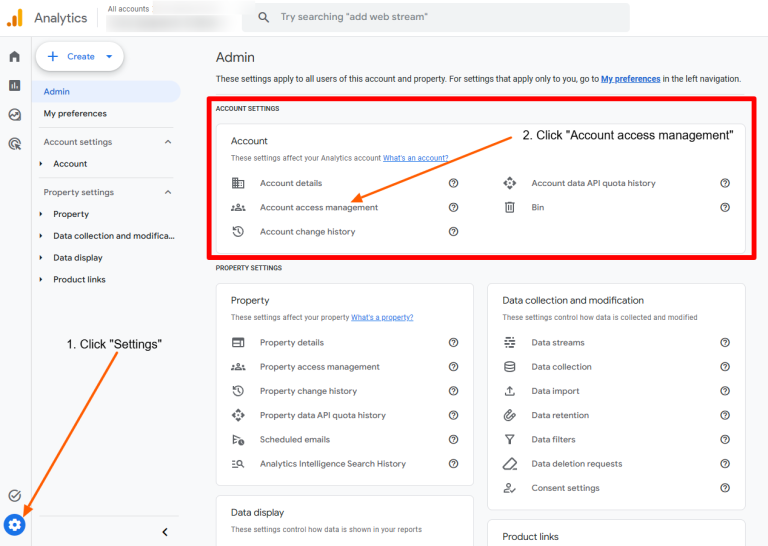
- Click the Admin gear icon in the bottom-left corner of the page.
- Choose Account access management (to give access to the entire account) or Property access management (to give access to a specific property).

- Click the blue [+] icon, then click Add users.
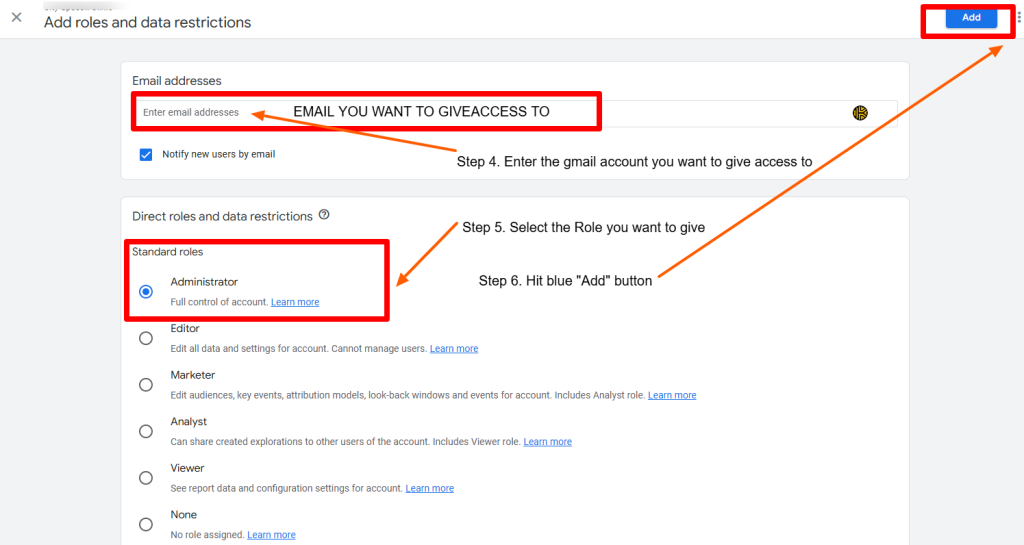
- Enter the user’s Google Account or Google Workspace email address.
- Check Notify new users by email so they receive an invitation message.
- Select the appropriate role (such as Viewer, Analyst, Marketer, Editor or Administrator).
- Click Add.

That’s it. The new user can now sign in to Google Analytics with their own Google account and see your website’s data.
Account access or property access?
- Account access gives the person access to every property in your Google Analytics account.
- Property access gives access to one property only, which is usually one website or app.
If you only have one website, either option works. If your account holds several websites, property access lets you share just the one that’s needed.
Which role should I choose?
| Role | What they can do |
|---|---|
| Administrator | Full control of the account, including adding, changing and removing users. Only give this to people you trust completely. |
| Editor | Change settings such as data streams, key events (conversions) and links to Google Ads, but can’t manage users. |
| Marketer | Create and edit audiences, key events, attribution settings and events, plus everything an Analyst can do. |
| Analyst | Create and share reports, explorations and comparisons, but can’t change settings. |
| Viewer | View reports and data only. |
| None | No role at this level. Used when the person has been given access at a different level. |
You can also tick No Cost Metrics or No Revenue Metrics under data restrictions if you don’t want the person to see cost or revenue figures.
Tip: If you’re giving Quikclicks access to set up tracking or link Google Ads, the Editor role is usually what we need. We’ll always confirm with you first.
How to change or remove a user’s access
To change a user’s role:
- Click Admin, then Account access management or Property access management.
- Find the user in the list (you can search by email address) and click their name.
- Choose a new role, then click Save.
To remove a user, open the same list, click the three-dot menu next to their name and choose Remove access, then confirm. It’s good practice to remove access for staff, contractors or agencies you no longer work with.
Common problems
- The invitation email didn’t arrive. Ask the person to check their spam folder. They don’t need the email to get in: once you’ve added them, they can simply sign in at analytics.google.com.
- Google says the email address isn’t a Google Account. The address must be linked to a Google account. Ask the person to create one with that email address, or use a different address.
- You can’t see the Add users option. Your own role isn’t Administrator. Ask the person who set up your Google Analytics account to add the user or upgrade your access.
- You can’t find your website. Check you’re signed in with the right Google account, and use the account selector at the top of the page to switch accounts.
Need help?
If you’d like help setting up Google Analytics, tracking phone calls and enquiries, or understanding your results, get in touch or call Quikclicks on 1300 132 274. Read more about how to know which marketing is working.